By default SixBit does not automatically back up your database. Setting up automatic backups ensures a recent copy of your database is saved on a regular schedule, so you have a fallback point if something ever goes wrong.
Step 1 - Designate the backup computer
Open the Application Menu (top-left icon) and click Options, then select Backups from the list on the left. If no computer has been designated yet, click Make this computer the Backup computer. This tells SixBit which machine should run the nightly backup job.
Important: Always designate your server or database host machine as the backup computer, not an individual workstation. The backup only runs if the designated machine is powered on and has SixBit or the SixBit Agent running at the scheduled backup time. Workstations get shut down or logged off; the server does not, which is why it should always be the one responsible for backups.
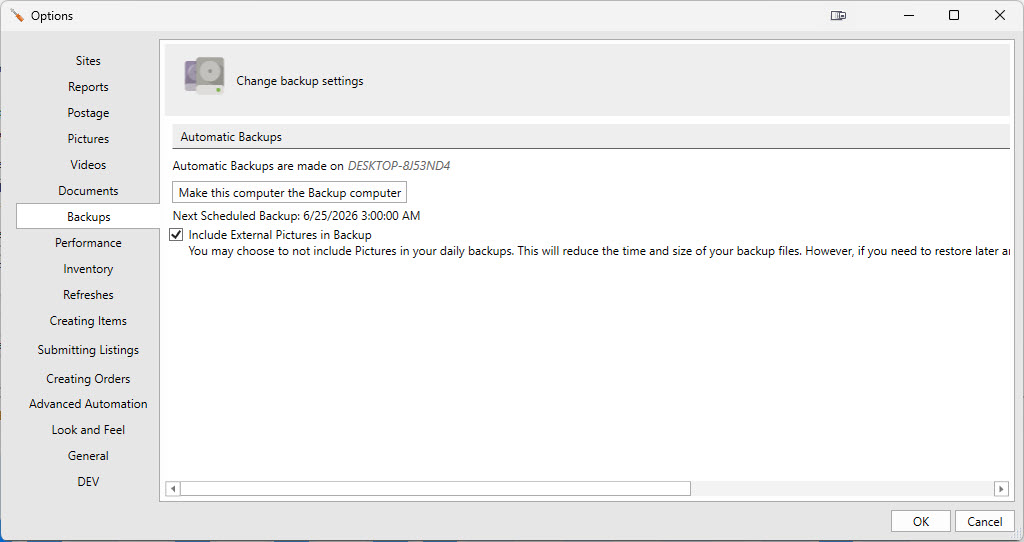
Backups tab before a computer has been designated to run automatic backups
Step 2 - Configure the backup schedule
Once a computer is designated, set Number of automatic backups to keep and the Default Backup Time. Use the Path for Backup files field (or Browse) to choose where backup files are saved, and check Include External Pictures in Backup if you want pictures stored outside the database included as well. The Next Scheduled Backup date will update to confirm the schedule is active.
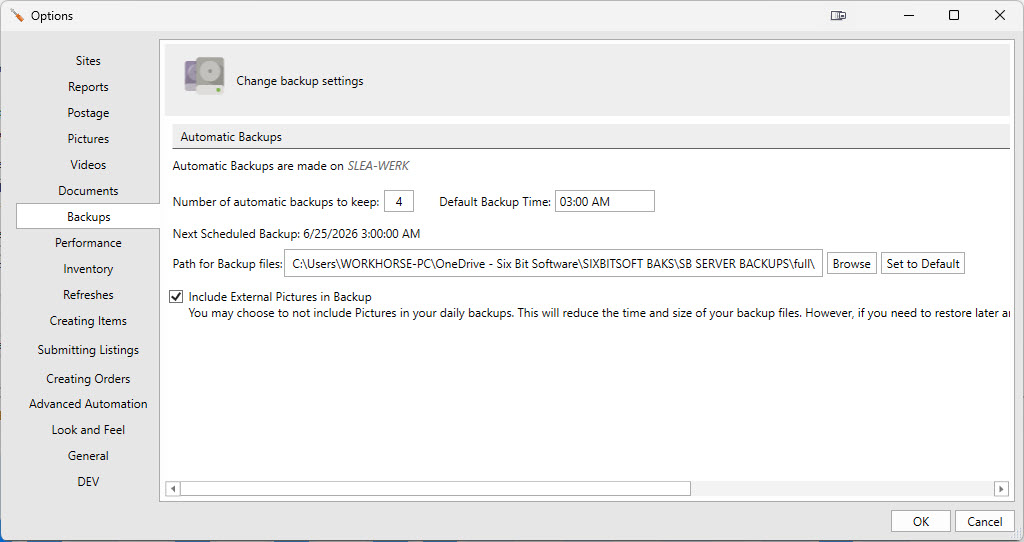
Backups tab after the backup computer is set, showing the count, time, and path fields
Automatic backups will now run on the designated computer at the scheduled time as long as SixBit or the SixBit Agent is running on that machine.
If you need help locating your backup files, changing the designated backup computer, or restoring from a backup, contact SixBit Support.