When you get a new or replacement computer, you do not need to start over in SixBit. As long as you have a recent database backup, you can install SixBit fresh on the new machine and restore your entire database, items, listings, and settings from that backup.
If you do not already have automatic backups set up, see Setting Up Automatic Database Backups and Backing Up Your SixBit Database to the Cloud with OneDrive first, so you always have a recent backup available no matter which computer you are on.
Step 1 - Install SixBit and log in
Install SixBit on the new computer the same way you did originally, then log in with your existing SixBit account. Since your subscription is tied to your account rather than to a specific computer, there is nothing to transfer or deactivate on the old machine.
Step 2 - Open Restore Database
From the Application Menu, go to Database, then click Restore Database.
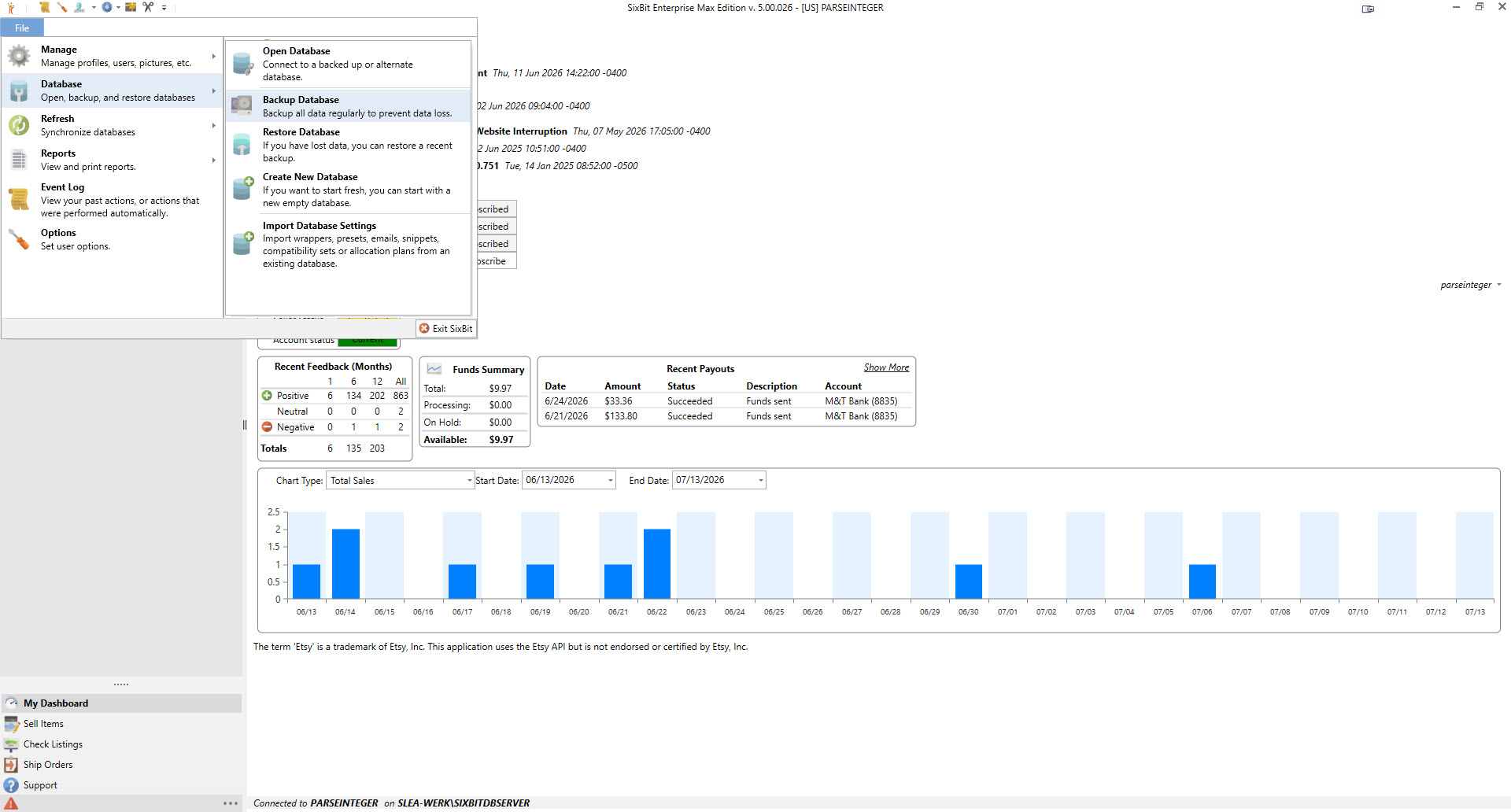
Application Menu showing the Database submenu with Restore Database
Step 3 - Browse to your backup file
If OneDrive (or another cloud sync client) is already syncing on the new computer, click Browse and navigate directly to your synced backup folder to select the most recent .bak file.
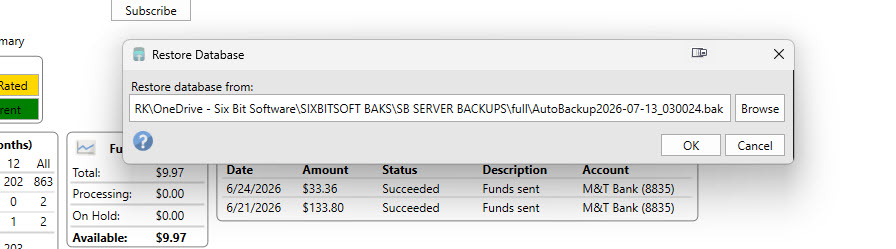
Restore Database dialog pointed at a backup file in a synced OneDrive folder
If you have not set up cloud sync on the new computer yet, you can instead log in to onedrive.com (or Google Drive or Dropbox), download your most recent backup file to a folder such as Downloads, and browse to it from there instead.
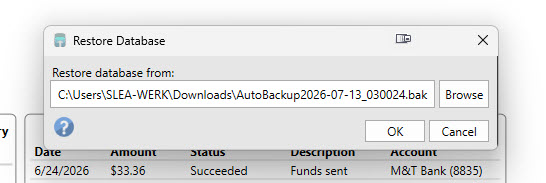
Restore Database dialog pointed at a backup file downloaded directly to the Downloads folder
Step 4 - Respond to the Different Name prompt
After clicking OK, you will likely see a Different Name prompt, since the new computer starts with its own empty database name that does not match the name inside your backup file. Click Yes to overwrite the current database with your restored data (the normal choice when setting up a new computer). Clicking No will instead restore the backup as a separate, additionally named database rather than replacing the current one.
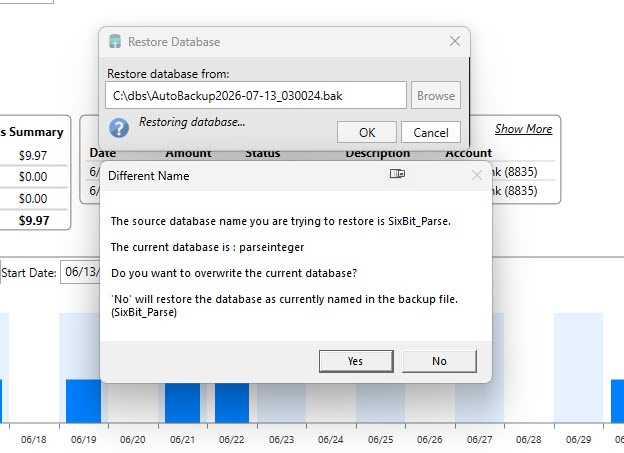
Different Name prompt asking whether to overwrite the current database
Step 5 - Wait for the restore to finish
The Restore Database window will show a Restoring database... status while the restore runs. There is no separate success message to wait for. Once the restore completes, the window simply closes and SixBit will automatically restart. When it reopens, your items, listings, and settings should all be in place.
Step 6 - Reconnect external pictures, if applicable
If you store pictures externally rather than inside the database itself, point the External Picture Storage path in Options back to the same location, or to a synced copy of it on the new computer, so your pictures are found after the restore.