This article walks through installing SixBit version 5.00 and above on a Windows computer. This version bundles SQL Server 2022, so the install flow looks different from older SixBit installers that used SQL Server 2014.
Before you begin - enable .NET Framework 3.5
SQL Server setup requires .NET Framework 3.5, which is not enabled by default on most Windows 10 and Windows 11 computers. Enabling it before you run the installer can save you from a failed or stalled SQL Server install partway through.
Press Windows key + R to open Run, type appwiz.cpl, and press Enter. In Programs and Features, click Turn Windows features on or off.
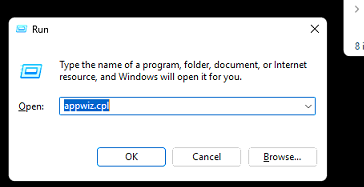
Run dialog opening Programs and Features with appwiz.cpl
In the Windows Features list, check .NET Framework 3.5 (includes .NET 2.0 and 3.0) and click OK. Let Windows install the feature before continuing.
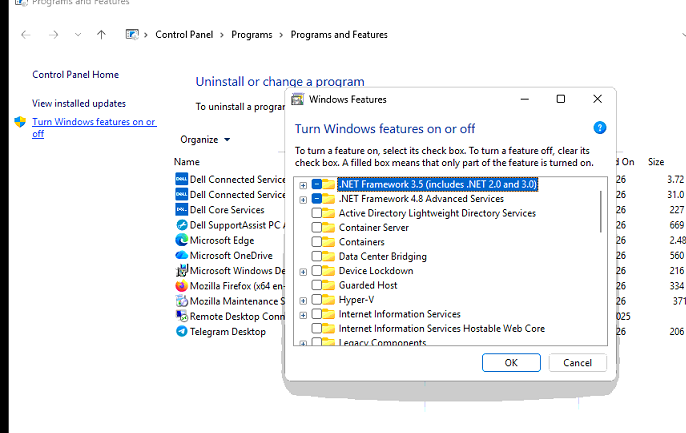
Windows Features dialog with .NET Framework 3.5 selected
Step 1 - Run the installer as administrator
Locate the Install-SixBit file you downloaded from your SixBit account, right-click it, and choose Run as administrator. Running as administrator avoids permission issues during the SQL Server portion of the install.
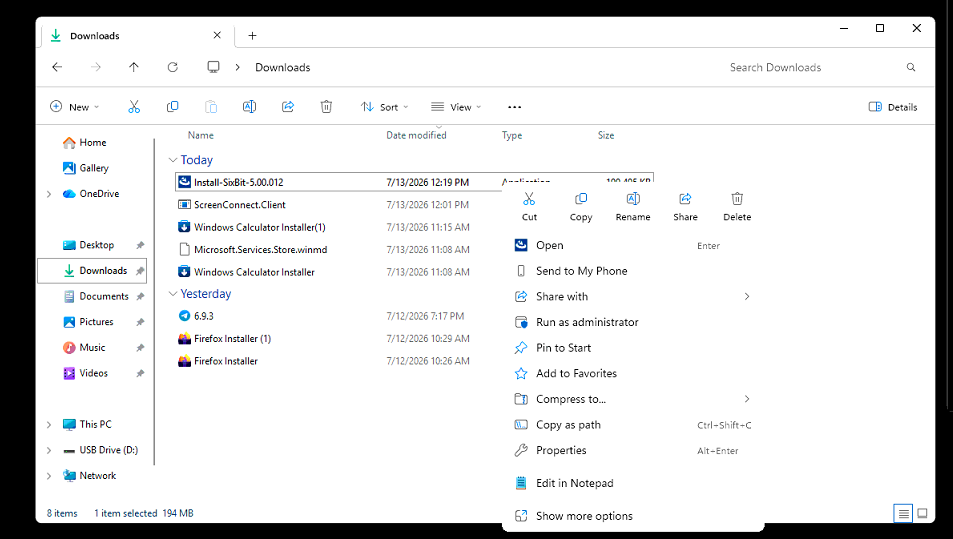
Right-click menu on the SixBit installer with Run as administrator selected
Step 2 - Work through the InstallShield Wizard
Click Next on the welcome screen.
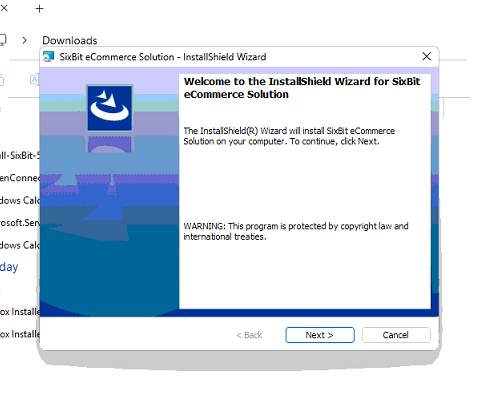
InstallShield Wizard welcome screen
Accept the license agreement and click Next.
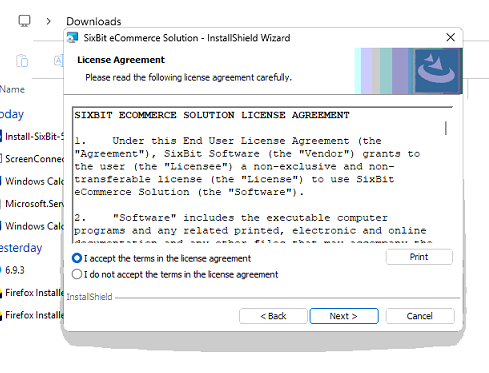
License agreement screen
Choose your setup type. Select Create a new SQL Server Database Instance if this is the first computer you are installing SixBit on, or if you are not sure what this means. Select Use an existing SQL Server Database Instance only if you already have SixBit installed on another computer on your network and want this computer to connect to that same database.
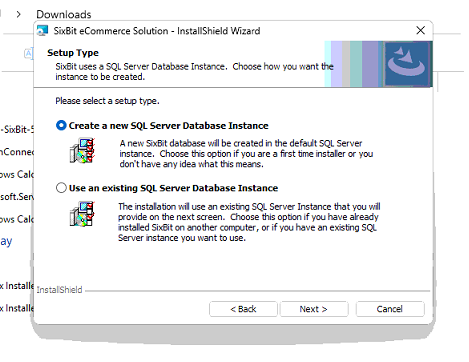
Setup Type screen choosing between a new or existing SQL Server instance
Confirm the destination folder, or click Change to install somewhere other than the default location, then click Next.
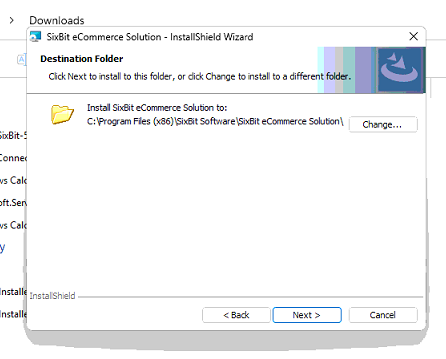
Destination Folder screen
Click Install to begin.
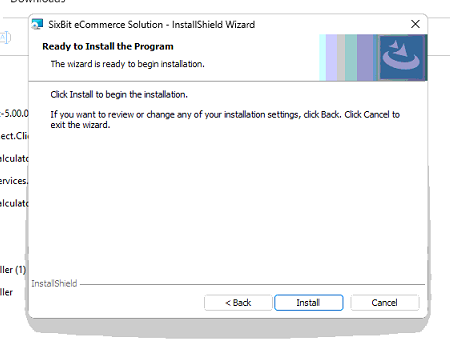
Ready to Install the Program screen
Step 3 - Let SQL Server 2022 install
The SixBit installer will launch SQL Server 2022 setup in the background and show its progress. This step can take several minutes depending on your computer. Do not click Cancel, and be patient even if the screen appears to pause between steps.
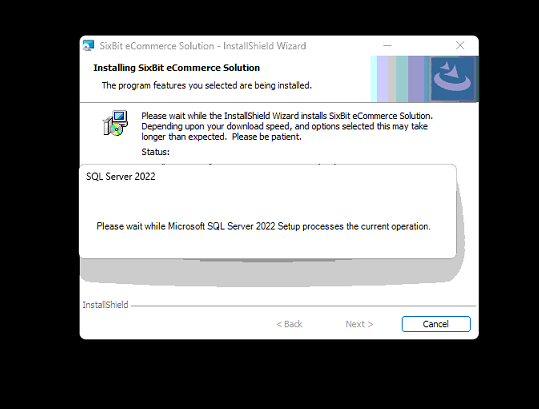
SixBit installer showing SQL Server 2022 setup running
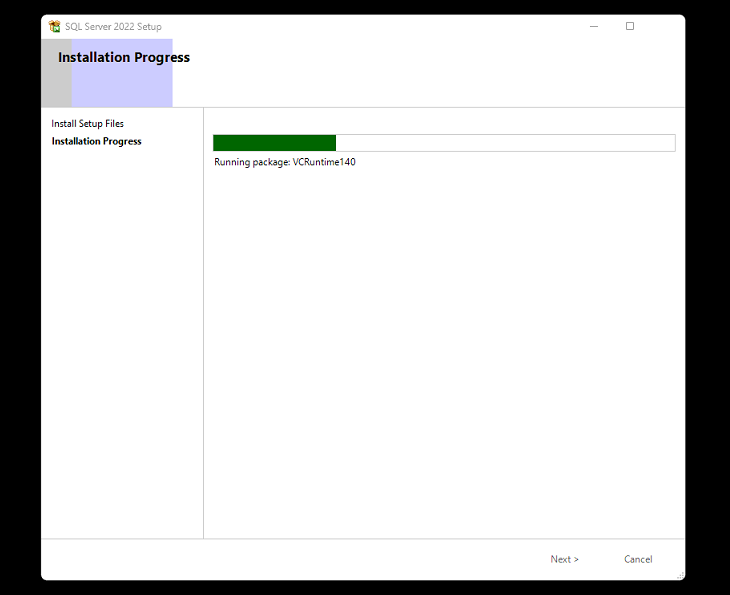
SQL Server 2022 Setup installation progress
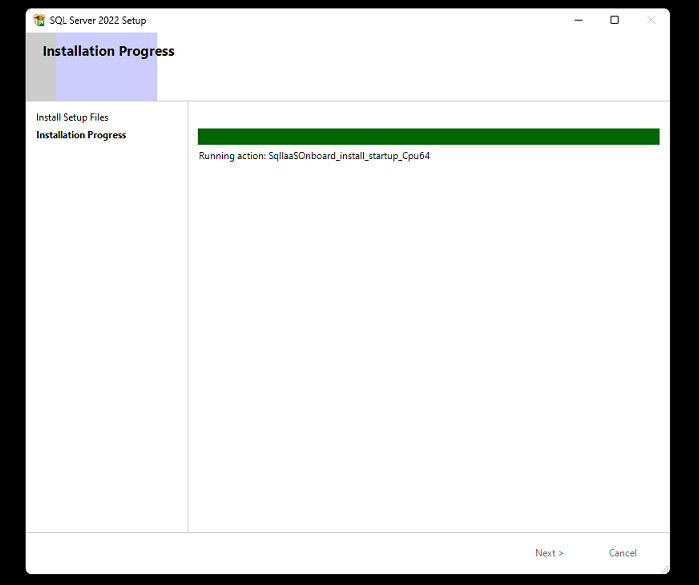
SQL Server 2022 Setup nearing completion
Step 4 - SixBit creates its database
Once SQL Server setup finishes, the SixBit installer resumes automatically.
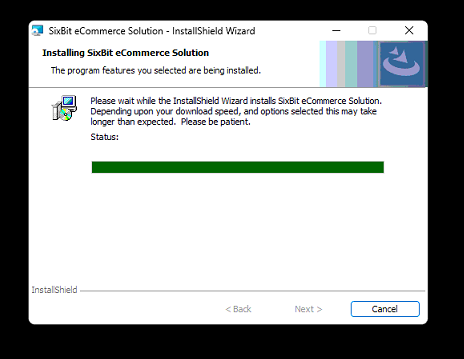
SixBit installer resuming after SQL Server setup completes
The installer will then execute the SQL database creation scripts to set up your new SixBit database. Once this finishes, the wizard will complete and SixBit will be ready to launch.
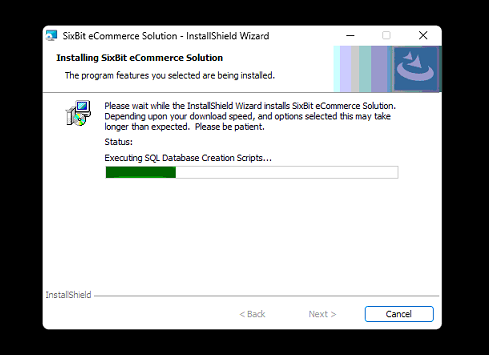
SixBit installer executing SQL database creation scripts
Launch SixBit and log in with your SixBit account to get started.