If SixBit grids such as Sell Items, Check Listings, or Ship Orders feel slow to scroll or load, there are several settings you can adjust that make a real difference, especially on large inventories. These are worth trying in order, since the first one alone solves this for most users.
Step 1 - Switch to Simple Grid View
Every main grid has a Simple Grid View toggle in the toolbar area at the top right of the grid. Turning it on strips out the extra visual formatting the standard grid view renders for each row, which noticeably speeds up scrolling once you have a large number of items, listings, or orders loaded.
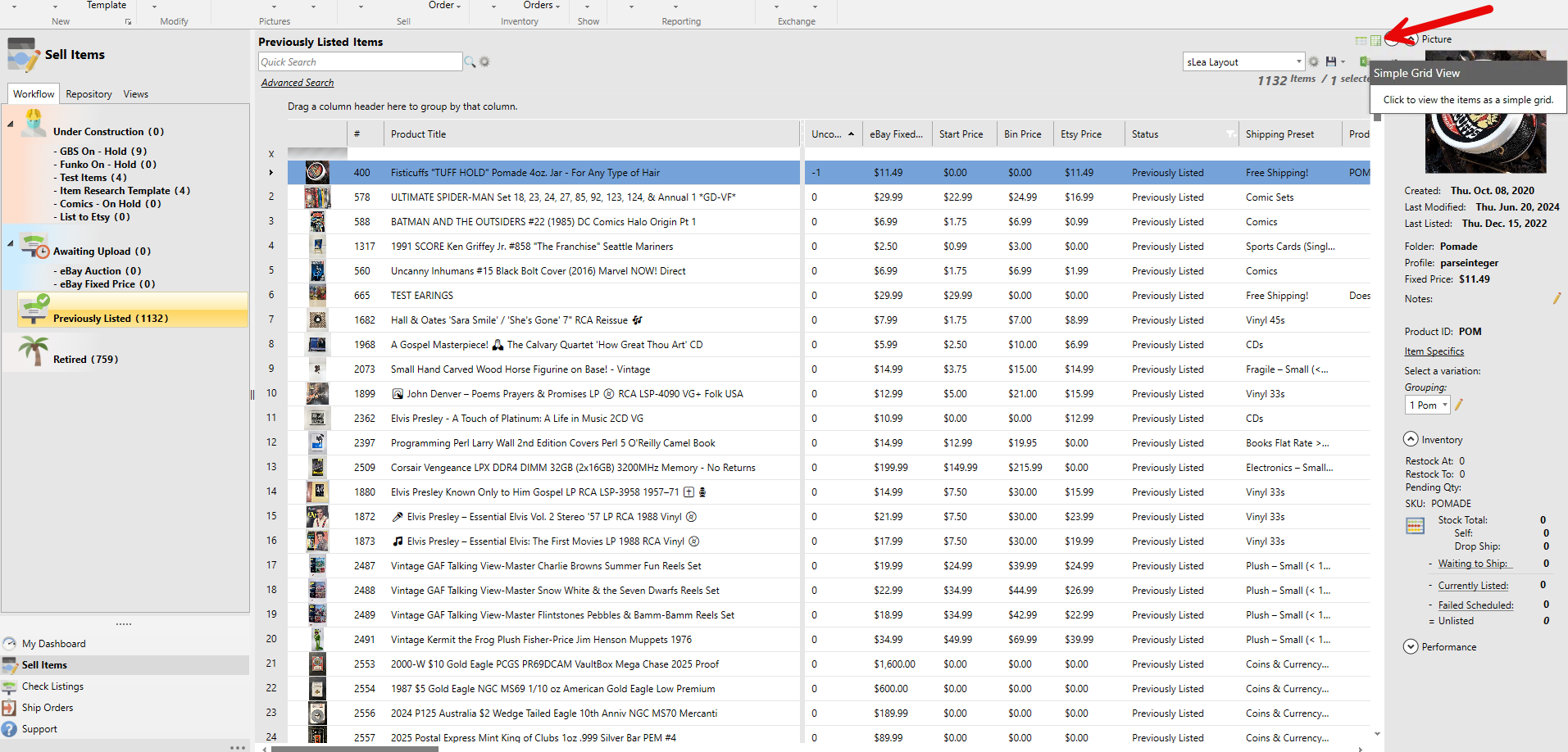
Simple Grid View button at the top right of the Sell Items grid
Step 2 - Hide columns you do not use
Every extra visible column adds to what the grid has to render as you scroll. Open the column chooser near the grid layout selector at the top of the grid and uncheck any columns you do not reference day to day. This is especially helpful if you are on a saved grid layout that has accumulated a lot of columns over time.
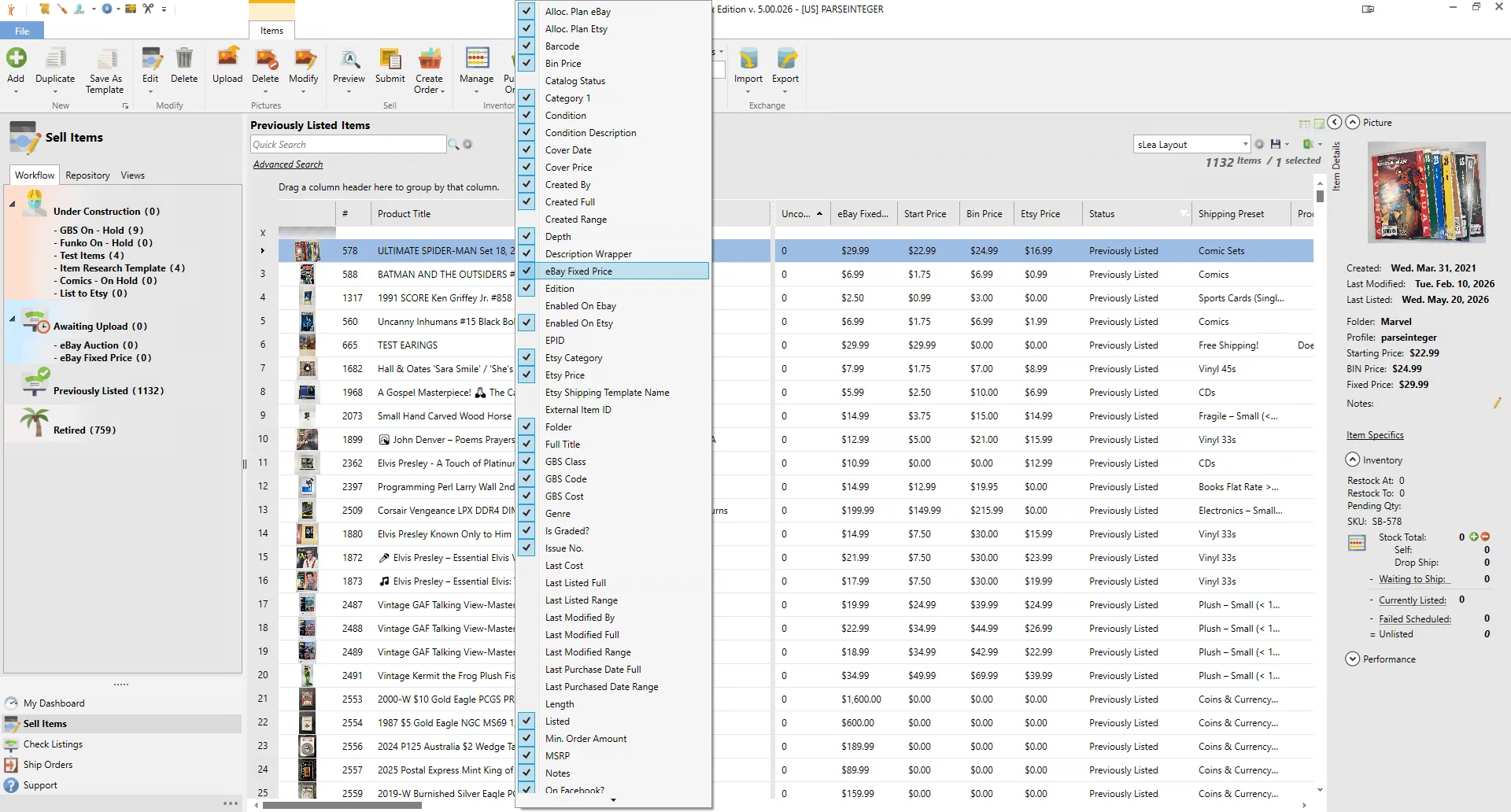
Column chooser listing all available columns with checkboxes to show or hide them
Step 3 - Adjust Performance options
Open the Application Menu, click Options, then select Performance from the list on the left.
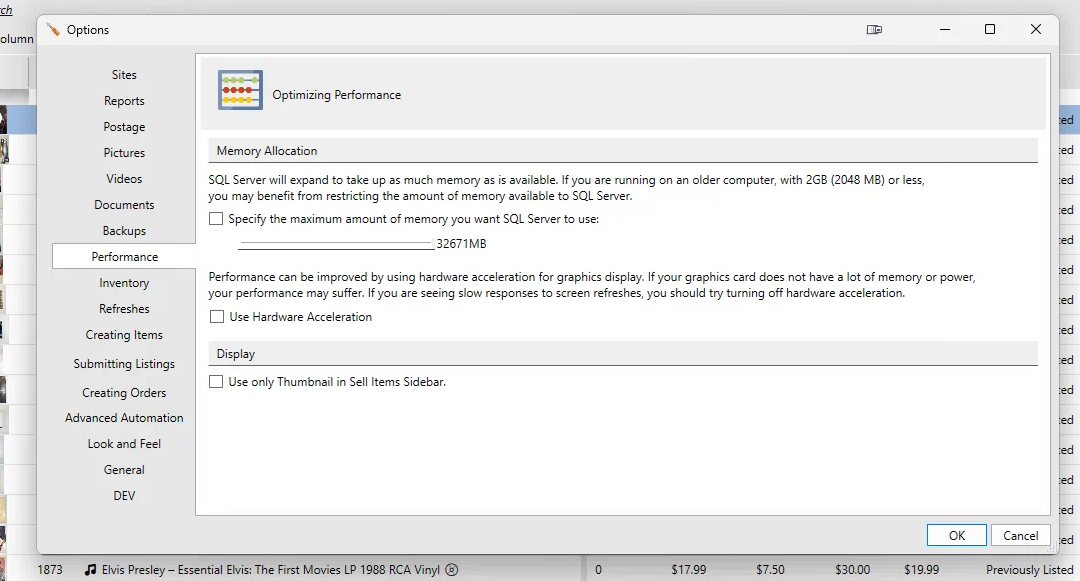
Options Performance tab showing memory allocation and display settings
From here you have three settings to consider:
Use Hardware Acceleration - this is counterintuitive, but if you are seeing slow screen redraws (the screen struggling to keep up as you scroll), try unchecking this box. It is most often the graphics card, not SixBit, that is the bottleneck, and this is especially common on remote desktop sessions or older or lower powered video cards.
Specify the maximum amount of memory to use - SQL Server will otherwise expand to use as much memory as is available on the computer. On a newer computer with plenty of RAM this is not a problem, but on an older computer with 2GB or less, capping SQL Server memory can free up enough memory for the rest of the system, including SixBit itself, to stay responsive.
Use only Thumbnail in Sell Items Sidebar - checking this reduces the picture rendering overhead in the item details sidebar, which can help if scrolling through items with a lot of pictures feels sluggish.
Step 4 - Do not load more than you need
Grids with tens of thousands of rows will always take longer to load and scroll through than a filtered subset. Use Advanced Search to narrow down to the items, listings, or orders you actually need to work with instead of browsing your entire inventory at once, and only check Include Retired Items when you specifically need to see retired items, since that adds a large number of additional rows to load.