SixBit does not have a built-in cloud storage integration, but you can get the same protection by pointing your automatic backup path at a folder that is synced by OneDrive (or another cloud sync client). Once that is set up, every backup SixBit creates locally is automatically copied to the cloud, so a crashed hard drive or a stolen or damaged computer will not cost you your backup history.
This builds on the Setting Up Automatic Database Backups article. Set up your backup schedule first if you have not already.
Step 1 - Point your backup path at a OneDrive-synced folder
In Options, on the Backups tab, set the Path for Backup files field to a folder inside your OneDrive folder (for example, a subfolder under your OneDrive - [Company Name] directory). You can type the path directly or use Browse to navigate into your OneDrive folder and create or select a backup subfolder there.
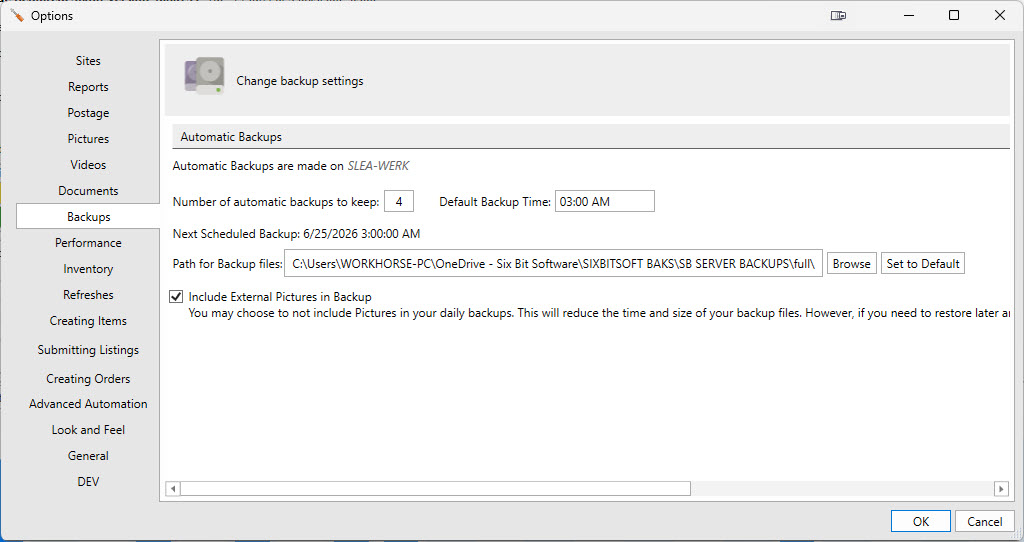
Backups tab with the Path for Backup files field set to a folder inside OneDrive
Step 2 - Grant SQL Server permission to write to that folder
Database backups are performed by SQL Server itself, not by SixBit directly, and SQL Server runs under its own Windows service account. A folder inside your OneDrive folder lives under your Windows user profile, which that service account cannot access by default, so the backup will fail silently unless you grant it permission.
Right-click your new OneDrive backup folder and choose Properties, then go to the Security tab and click Edit. Click Add, type NETWORK SERVICE, and click OK, then check the Modify box for that account. Repeat the same steps to add the Everyone account as well, in case your SQL Server service is running under a different account than expected.
If you are running SQL Server 2012, you may also need to add the Authenticated Users account instead of, or in addition to, NETWORK SERVICE. See Setting Database Backup Permissions for complete details on this step.
Step 3 - Confirm the backups are syncing to the cloud
Open File Explorer and browse to that same backup folder. Each backup file should show a small cloud or checkmark status icon next to it. This confirms OneDrive has picked up the file and is syncing it, rather than it only existing on the local hard drive.
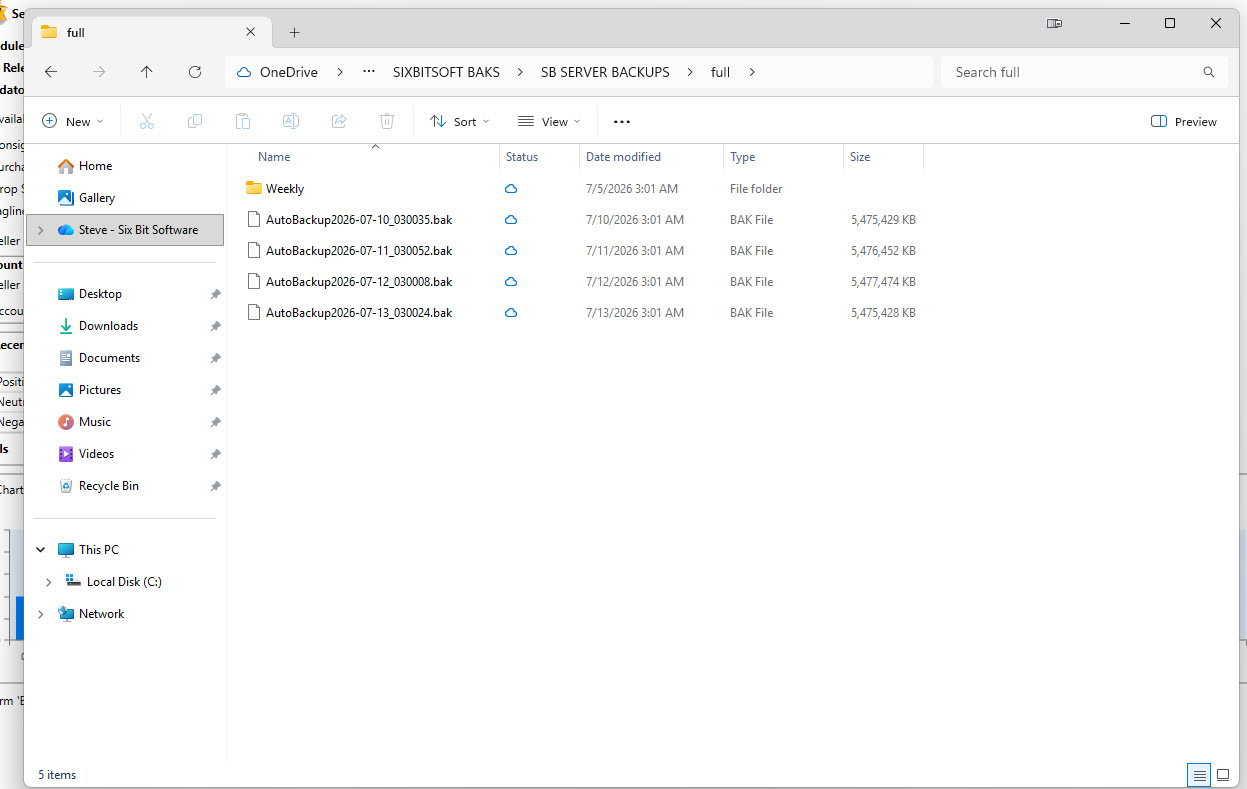
File Explorer showing backup files with OneDrive sync status icons
Step 4 - Verify with the OneDrive activity center
Click the OneDrive icon in the Windows system tray. The flyout will show a status such as Backed up and synced, along with a list of recently synced files, including your latest backup. This is the clearest confirmation that your backup file has actually left your computer and is stored in the cloud.
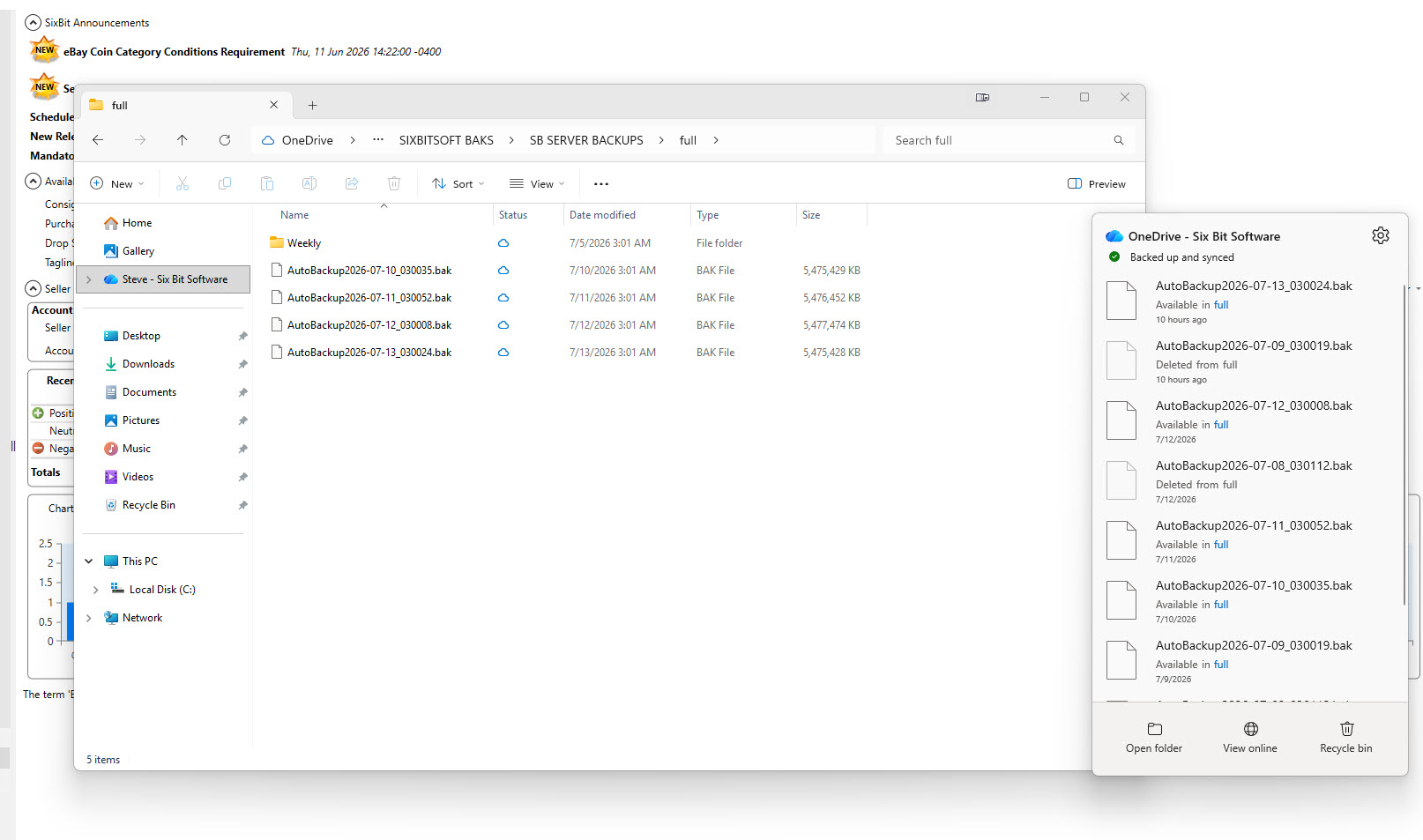
OneDrive flyout confirming recent backup files are backed up and synced
With this in place, even if the computer running SixBit is lost, stolen, or suffers a hard drive failure, your most recent backups remain safely stored in your OneDrive account and can be downloaded from any other computer or from onedrive.com.
Using Google Drive or Dropbox instead
The process is virtually identical if you use Google Drive or Dropbox rather than OneDrive. Both create a local synced folder on your computer just like OneDrive does. Simply set the Path for Backup files field in SixBit to a folder inside your Google Drive or Dropbox folder instead, apply the same NETWORK SERVICE and Everyone permissions from Step 2 to that folder, and that client will sync the backups to the cloud the same way. You can confirm the sync the same way as well, by checking for a sync status icon in File Explorer and reviewing the activity list from the Google Drive or Dropbox icon in the system tray.